
Your Everyday Solo Training: The Standalone Session Hub
Upload a single GPS log and instantly review speed peaks, tack losses, and point-of-sail metrics in 30 seconds without laying race marks.
Solo training sessions (drills, speed runs, distance sails) do not involve race committees or laid buoys. OutSail.pro provides a dedicated fast path called the Training Session Hub designed specifically for individual sailors.
1. Quick Upload (One-Click Ingestion)
You do not need to create an Event, Series, or fleet roster to analyze your daily sail:
- At the bottom of the Tree Menu (left sidebar), click
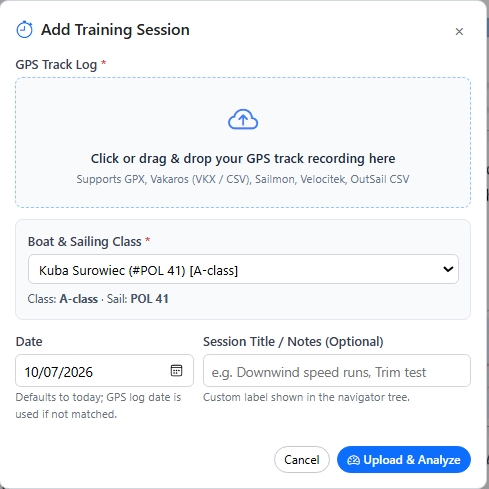
+ Training Session. - In the upload dialog:
- GPS Track Log: Drag & drop your file (
.gpx,.vkx,.csv,.xml). - Boat: Select an existing boat from your Predefined Boats or enter your sail number, boat name, and class (e.g., ILCA 7, Waszp, 49er).
- (Optional) Check
Save to My Predefined Boats for future sessionsso you never have to re-type boat details. - Click
Upload & Convert.
The system immediately processes your log, creates a standalone Training Session node in your Tree Menu, and opens the Training Analysis & Trim dashboard in the central workspace.
2. Autonomous Analysis (What Happens Automatically)
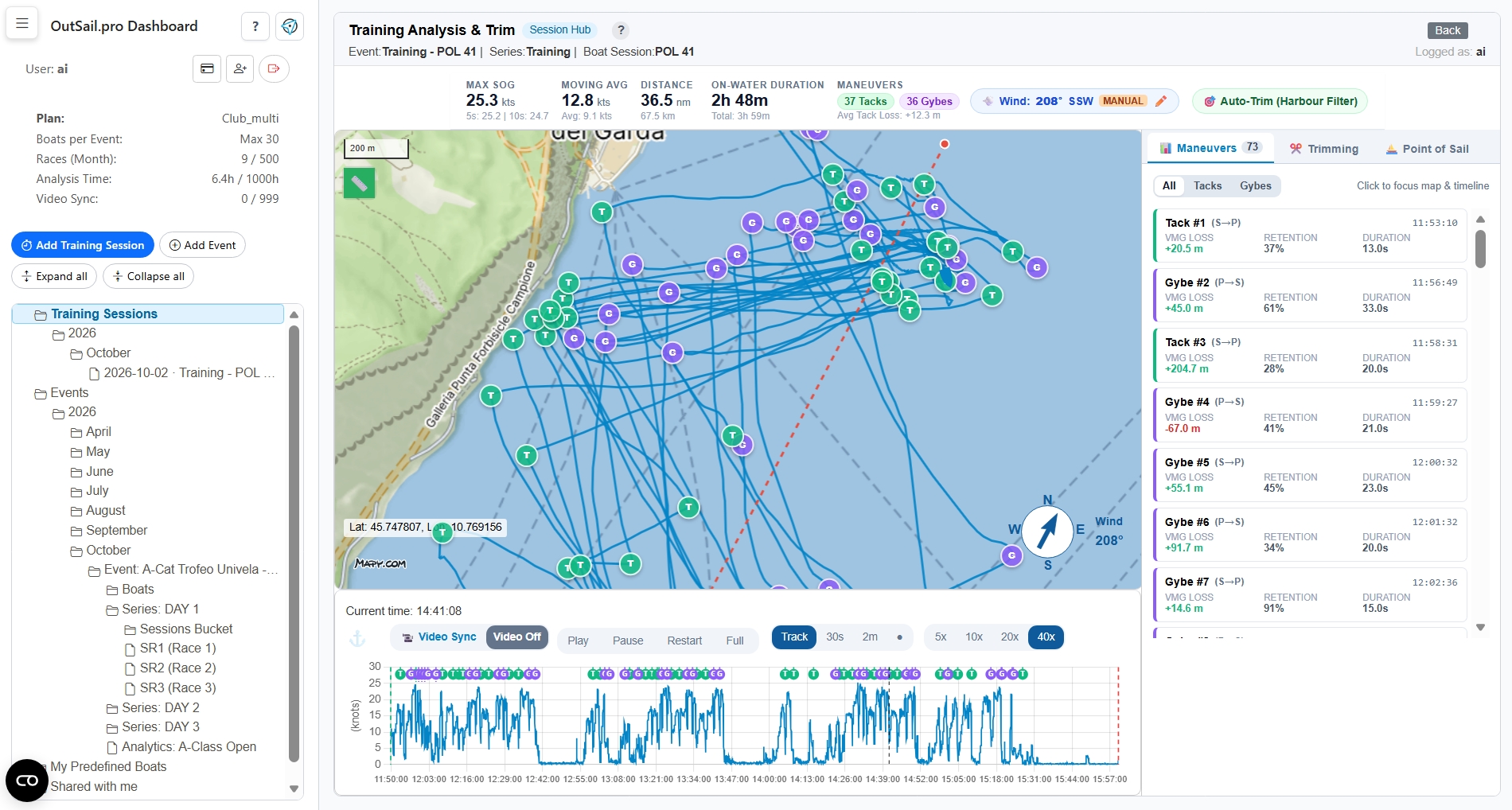
Without requiring you to set up wind instruments or mark coordinates, the engine autonomously: * Filters Harbor Time: Isolates active sailing from dockside preparation or drifting in the marina. * Estimates True Wind Direction (TWD): Calculates the prevailing ambient wind angle from the symmetry of your steady upwind tacks. (Always verify that the wind direction shown on the map matches your actual conditions on the water). * Detects Every Manoeuvre: Identifies every tack and gybe, calculating entry speed, minimum apex speed, speed retention percentage, recovery duration, and tactical VMG distance loss in metres. * Breaks Down Points of Sail: Segregates your sailing time into Upwind, Reaching, and Downwind segments.
3. Navigating the Session Hub Dashboard
The Training Hub consists of four coordinated panels:
A. Top KPI Ribbon
At the top of the screen, review high-level session figures at a glance:
* Max SOG & Rolling Peaks: Instantaneous peak speed alongside 5-second and 10-second rolling averages (which filter GPS anomalies).
* Moving Avg vs. Overall Avg: Average speed while actively moving (≥ 1.5 kts) versus total time elapsed.
* Distance & Duration: Total nautical miles logged and active on-water time.
* Manoeuvre Count & Average Loss: Total tacks and gybes executed, plus your average tack loss in metres.
* The Wind Pill (e.g., 245° WSW [Auto]): Displays the active wind direction. Left-click the pill to open the Wind Override Modal if you want to set a known wind heading manually.
* Auto-Trim (Snap to Sailing Time): A quick button that automatically snips off dock and slipway time.
B. Interactive 2D Map & Playback Toolbar
- Live Boat Icon: Displays your physical position and heading along the track.
- Wind Arrow: Anchored indicator showing the True Wind Direction (rotatable between Compass and Map modes).
- Manoeuvre Pins:
- T (Green circle): Tack apex.
- G (Purple circle): Gybe apex.
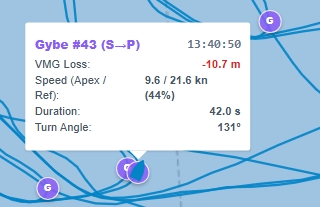
- Hover over any pin to inspect a summary popup (VMG Loss in metres, Apex vs. Reference Speed, Retention %, and Duration).
- Left-click a pin to center the map on that turn and synchronize the speed timeline.
- Playback Controls: Play, pause, or replay at 5x, 10x, or 20x speed, with toggles for full track or recent 30s/120s trails.
C. Synchronized Speed Timeline
Directly below the map:
* Moving your mouse across the speed graph scrub-updates the boat's position on the map in real time.
* Freeze Mode (F Key): Press F to lock the timeline cursor at an exact second for closer inspection; press F again to resume scrubbing.
* Zoom & Pan: Scroll to zoom in on a specific speed run or drill interval.
D. Right Sidebar Workspace (Tabs)
- 📊 Manoeuvres Tab: A scrollable list of every tack and gybe with direction badges (
P→Sfor Port-to-Starboard,S→Pfor Starboard-to-Port), VMG loss, and speed retention. Clicking any card jumps to that turn. - ✂️ Trimming Tab: Visual handles to fine-tune session start and finish timestamps (
+ Start @ Cursor,+ End @ Cursor, orSnap to Sailing Time). ClickSave Trimto store your permanent session boundaries. - ⛵ Point of Sail Tab: Quantitative breakdown of time and average speed spent Upwind, Reaching, and Downwind.
4. Scaling Up: Converting to a Multi-Boat Event
If your training partners or coach later share their tracks from the same session:
1. In the Tree Menu, left-click your Training Session node.
2. Select Convert to Multi-Boat Event from the Action Menu popover.
3. The session is automatically converted into a full Event structure with a Series, preserving your track inside the Sessions Bucket.
4. You can now add other boats and compare tracks side-by-side!