
Creating an Event & Adding Training Sessions: Coaches & Fleet Organizers
Set up a regatta or team clinic: create an Event, populate your fleet roster, create daily Series, and collect GPS tracks via direct upload or Sailor Dropzone.
When coaching a squad or analyzing a fleet regatta, you need to manage multiple boats across multiple days. OutSail.pro streamlines this workflow by separating fleet setup from file collection.
1. Creating the Event
An Event acts as the master container for your regatta, clinic, or championship:
- At the top of the Tree Menu (left sidebar), click
+ Add Event. - Fill in the event details:
- Name: (e.g., Spring Clinic Palma 2026 or National Championships).
- Description: Optional training notes or venue details.
- Class: Select or search your class from the autocomplete list (e.g., ILCA 7, 49er, 29er, Nacra 17).
- Start date: The first day of the event.
- Click
Create. The new Event immediately appears at the top level of your Tree Menu.
2. Populating the Fleet (The 3 Ways to Add Boats)
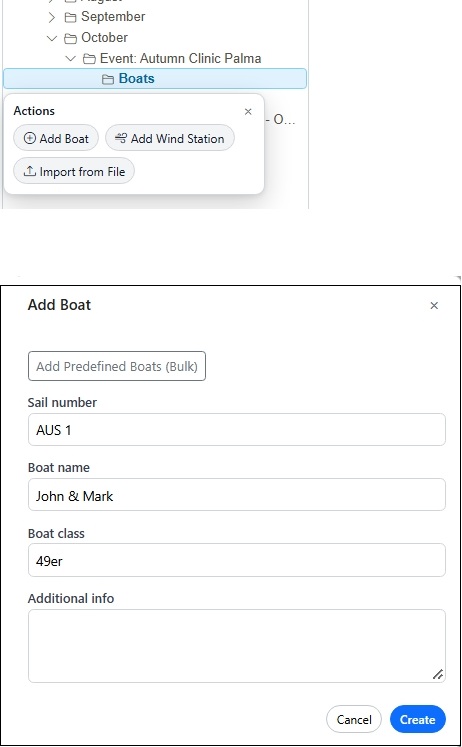
Under your new Event, expand it and left-click the Boats node to open its Action Menu popover. You have three ways to add boats, depending on your fleet size:
Option A: Manual Entry (Add Boat)
Best when adding 1 or 2 individual boats:
1. In the Action Menu, click Add Boat.
2. Enter the Sail number (required, e.g., POL 211555), Boat name, and confirm the Boat class.
3. Click Create.
Option B: Bulk Selection from Saved Fleet (Add Predefined Boats - Bulk)
If you frequently train with the same squad:
1. In the Action Menu, click Add Boat.
2. At the top of the form, click Add Predefined Boats (Bulk).
3. A modal opens listing your saved roster from Predefined Boats.
4. Check the boxes next to the sailors participating in this event, then confirm. All selected boats are added to the Event instantly.
Option C: File Roster Import (Import from File)
When managing a large regatta or official entry list:
1. In the Action Menu, click Import from File.
2. Prepare a spreadsheet (.csv, .xls, or .xlsx) containing three columns:
* Sail Number
* Boat Name
* Class
3. Drag & drop the file into the upload zone and click Import.
4. OutSail imports up to 200 boats in seconds, automatically filtering out duplicates and showing an import summary.
💡 Bonus: Adding a Wind Station (
Add Wind Station):
If the coach RIB or committee boat carries an ultrasonic anemometer logging live wind, left-clickBoats$\to$Add Wind Station. Enter the station name (e.g., Coach RIB 1), station code (e.g., WS-01), and optional fixed coordinates. Its logged wind readings will be available as a benchmark for the fleet.
3. Creating a Series (Daily Sailing Block)
An Event is divided into days or phases called Series:
- Left-click your Event node $\to$ select
Add Seriesfrom the Action Menu. - Enter the Series name (e.g., Day 1 or Qualifying Series) and the date.
- Click
Create.
OutSail creates the Series node in the tree and automatically generates a Sessions Bucket inside it. The Sessions Bucket is the destination for all raw GPS tracks collected on that day.
4. Adding Boat Sessions to the Sessions Bucket
You have two methods for collecting tracks: direct coach upload or automated sailor self-upload.
Method A: Direct Upload by Coach (Import Session)
Use this when sailors send you track files via email, WhatsApp, Google Drive, or you collect USB sticks/SD cards:
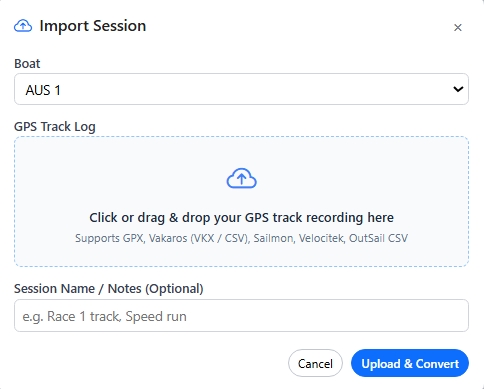
1. In the Tree Menu, left-click Sessions Bucket $\to$ select Import Session.
2. In the dialog:
* Boat: Select the target boat from the dropdown (populated with boats from your Event roster).
* GPS Track Log: Drag & drop the track file (.gpx, .vkx, .csv, .xml).
* Session Name / Notes: Optional label (e.g., Morning Speed Drill).
3. Click Upload & Convert. The session is processed and appears as a Day Session inside the Sessions Bucket.
Method B: Frictionless Sailor Self-Upload (Dropzone Link & Data Inbox)
Eliminate the need to collect physical memory cards or forward files manually:
- Copy the Dropzone Link:
- Left-click your Event node $\to$ select
Copy Dropzone Link. - A unique upload URL is copied to your clipboard.
- Send this link to your sailors via WhatsApp, email, or a club group chat.
- What the Sailor Does (On their Phone or Laptop):
- The sailor opens the link in their mobile browser (logged in to OutSail).
- They select their Sail Number from the dropdown and pick the Series/Day.
- They drag & drop their track file exported from the Vakaros, Garmin, or Sailmon app.
- They click upload and receive immediate confirmation.
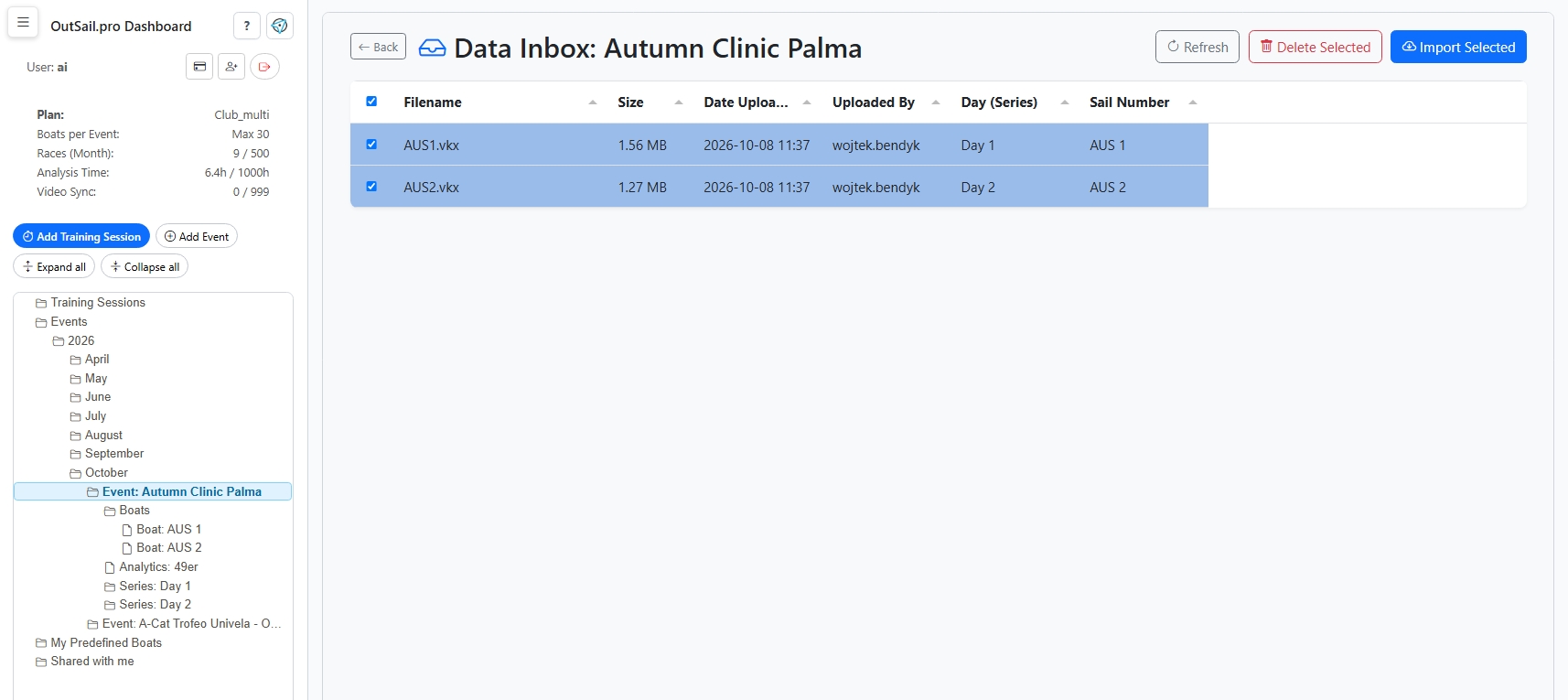
- What the Coach Does (Data Inbox):
- In the Tree Menu, left-click the Event node $\to$ select
Open Data Inbox. - The Data Inbox panel opens displaying a table of all submitted files.
- Review the list, select the files to include, and click
Import Selected. - OutSail automatically converts and routes each file into the appropriate boat and Series Sessions Bucket!
Summary: What's Next?
With your Event created, fleet assigned, and raw GPS tracks collected inside the Sessions Bucket, your daily data is fully secured.
The next step is to slice the day's tracks into individual races—which we cover in Tutorial 4: Slicing Series into Races.