
Getting Started with OutSail.pro: Core Concepts & Data Hierarchy
Understand how OutSail.pro organizes sailing data: the Tree Menu hierarchy, supported GPS loggers, and interface navigation.
Whether you are a solo sailor tracking your own performance or a coach running a multi-boat regatta debrief, OutSail.pro organizes all sailing data around a structured hierarchy.
1. The Data Hierarchy (Tree Menu)
The left panel of the dashboard (the Tree Menu) is the command centre of OutSail.pro. It organizes your data into logical parent-child levels:
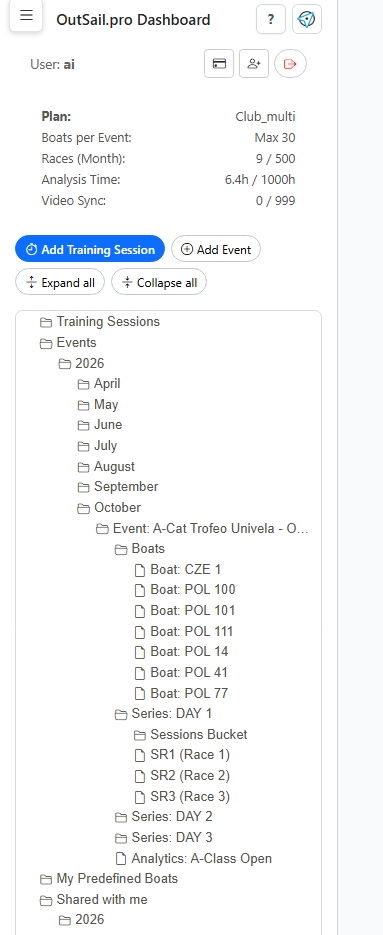
Note on Folder Organization: Both Events and Training Sessions are automatically sorted into year and month folders based on their Start date. These date folders are managed automatically by the system.
Hierarchy Breakdown:
- Event: The highest organizational level. Represents a regatta, clinic, or multi-day training camp.
- Boats: The fleet roster assigned to this Event. You can also add stationary or coach-RIB wind stations here.
- Series: A subdivision of an Event, typically representing a single day of racing or a division (e.g., Day 1 or Finals).
- Sessions Bucket: The storage container inside each Series holding your source GPS logs. Source files are always preserved without alteration, allowing you to slice or re-slice races at any time. It contains:
- Day Sessions: Full-day recordings covering the entire time on the water. These are sliced into individual races.
- SR Sessions (Single Race Sessions): Pre-cut tracks imported directly into a specific race window (organized in folders like SR1 Sessions).
- Race: A single race or training drill defined by a start time and an end time window.
- Training Session: Standalone, single-boat tracks located at the bottom of the tree, allowing quick solo analysis without setting up an entire Event.
- Predefined Boats: Your persistent fleet roster of sailors and boats you coach or train with. Once added here, they can be bulk-added to any new Event with one click.
- Shared with me: Contains Events and Training Sessions that have been shared with you by other users.
2. Supported Devices & Formats
OutSail.pro processes data from all standard sailing GPS loggers and formats:
* Vakaros: Native .vkx binary files and .csv exports (including 10 Hz telemetry).
* Sailmon: .csv exports from MAX and MAX Mini units.
* Velocitek: ProStart and SpeedPuck files (.xml, .vtk, .csv).
* GPX: Standard .gpx files from Garmin, Suunto, Apple Watch, Stentec, and mobile tracker apps.
* Expedition & Generic CSV: Standard .csv and .txt sailing log formats.
Speed units (knots, m/s, km/h) are detected automatically, GPS spikes are filtered, and timestamps are normalized to a consistent 1 Hz timeline for side-by-side comparison.
3. Navigating the Interface
The Action Menu Popover
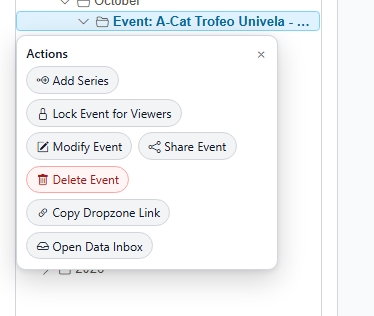
You interact with the Tree Menu using standard left-clicks: * Left-click on any item (an Event, Series, Sessions Bucket, or Race) to open its Action Menu popover. * The Action Menu displays only the operations valid for that specific item (e.g., Add Series, Copy Dropzone Link, Slice Series into Races, Course definition, Analyse).
The Workspace
- Central Area: Displays the active tool or viewer based on your selection — including the interactive 2D Race Replay map, Speed Analysis charts, Course Editor, or the Data Inbox.
- Header Bar: Shows your current account plan and resource usage (active boats and analyzed hours).