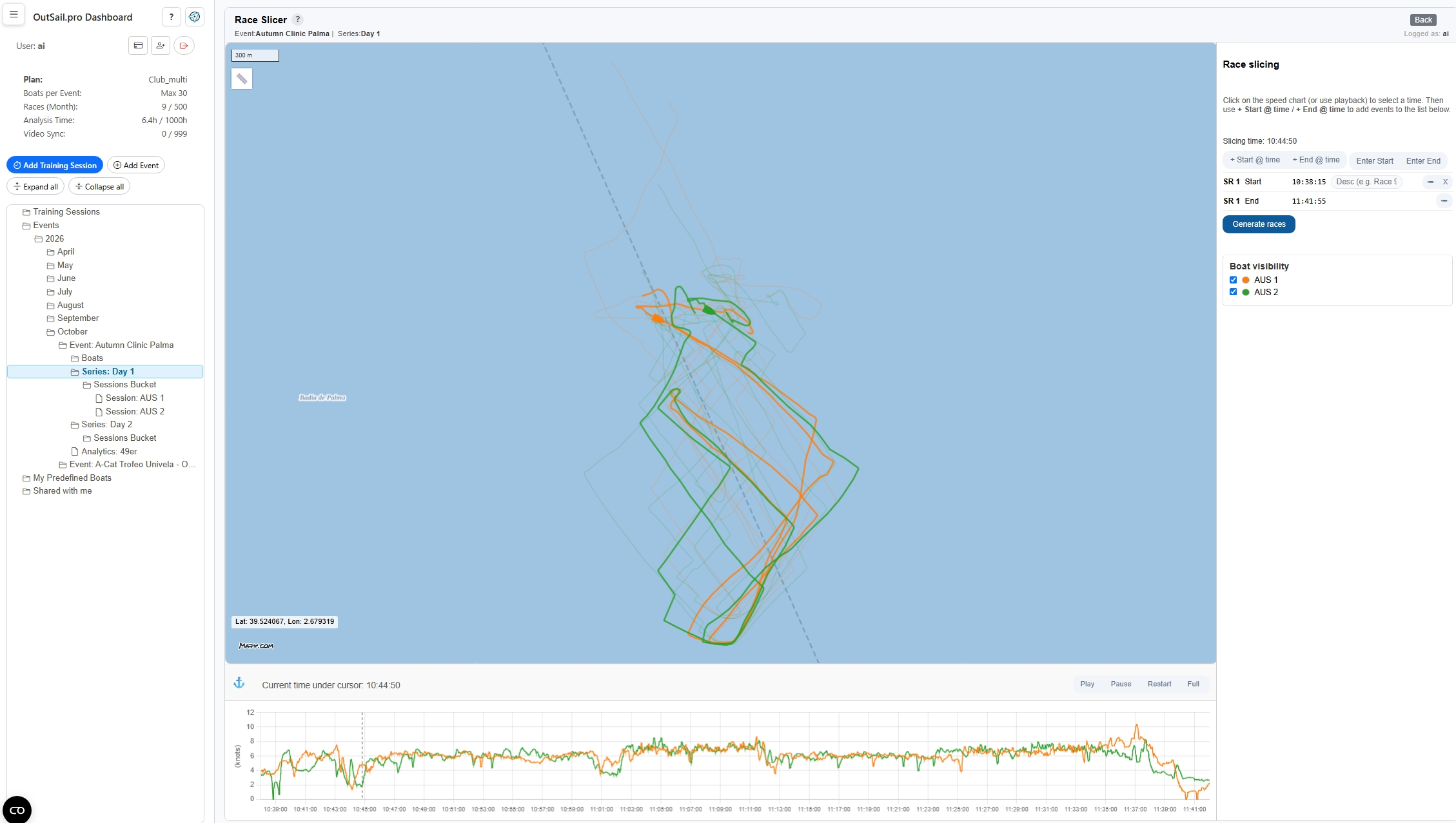
Slicing Series into Races: Creating Race Windows
Transform continuous full-day tracks into individual race windows: understand rough starts, pre-start margins, and slowest boat buffers.
After uploading your day's tracks to the Sessions Bucket, your data exists as a continuous timeline spanning the entire time on the water. Before you can define marks and analyze performance, you need to divide this continuous session into individual race windows using the Race Slicer.
You open the slicer by left-clicking on a Series node in the Tree Menu $\to$ selecting Slice Series into Races from the Action Menu popover.
1. The Slicing Philosophy: Rough Start vs. Precise Gun Signal
A crucial principle in OutSail.pro: In the Race Slicer, you only define a rough time window for the race. You do not need to be surgically precise down to the second.
- Slicing simply creates an envelope (start boundary to end boundary) that extracts the relevant chunk of GPS data for that race.
- The official, millisecond-accurate start gun signal (
race_start_signal) is calibrated later in the Course Editor (via automatic fleet line-crossing detection, timeline inspection, or synchronized video). - Slicing is completely non-destructive: your full-day source logs in the Sessions Bucket remain untouched.
2. Setting Time Margins: Pre-Start and Post-Finish
When defining the start and finish boundaries for a race slice, always keep intentional margins:
A. Pre-Start Margin (2 to 5 minutes before the start)
Whether you are slicing visually or typing known start times from the committee boat log, never set the start slice right at the gun: * Always set the start boundary 2 to 5 minutes before the expected start gun. * Why it matters: Slicing before the gun ensures that pre-start maneuvers, line holding patterns, boat-on-boat positioning, acceleration runs, and distance-to-line calculations are captured within the race window.
B. Post-Finish Margin (Catching the Slowest Boats)
When defining the end of the race slice: * If not all boats' logs have been uploaded yet, or if there were large gaps across the fleet at the finish line, add a generous buffer after the leader crosses the line (depending on fleet skill differences and race duration). * Why it matters: When slower boats' files are uploaded later into the Sessions Bucket, their finish line crossings will still fall inside the race window and won't be truncated!
3. How to Spot the Rough Start Visually
If you don't have recorded start times from a coach notebook or committee sheet, you can easily identify the start of a race on the speed chart and map:
- The Pre-Start "Milling" Pattern:
- Look for a period where boats move at lower, variable speeds with frequent short maneuvers (tacks and gybes) concentrated in a small area near the starting line.
- The Unified Acceleration Jump:
- Right before the start, boat speed jumps sharply as boats bear away and sheet in.
- The Sustained Upwind Beat:
- Immediately following the speed jump, you will see a sustained, steady speed profile and a consistent upwind heading across the fleet as boats power up toward the windward mark.
- Identify the start window: Drop your start marker 5 minutes before that sustained acceleration begins.
4. Slicing in Practice: The Two Methods
In the Race Slicer workspace:
Method 1: Visual Slicing (Recommended and usually quicker)
- Hover your mouse along the speed timeline chart until you locate the pre-start area.
- Press the
Fkey on your keyboard to freeze the timeline cursor. - Click the
+ Start @ timebutton to place a green start marker. - Press
Fagain to unfreeze. - Move your mouse past the finish line (remembering to add your post-finish buffer).
- Press
Fto freeze, and click+ End @ timeto place a red end marker. - Repeat this for each race sailed that day (e.g., Race 1, Race 2, Race 3).
Method 2: Manual Timestamp Entry
If you have exact start and finish notes from the race committee:
* Click Enter Start and Enter End on the right panel to type ISO timestamps directly (remembering to subtract 2–5 minutes for the pre-start margin).
5. Managing Slices & Generating Races
As you create slices, they appear in the list on the right sidebar:
* Description: Enter a clear label for each race (e.g., R1, Race 2, Practice Drill 1).
* Adjusting: Click the pencil icon (✏) to fine-tune timestamps.
* Deleting: Click the X icon next to a slice if you need to remove it.
Once all races are defined, click the Generate races button at the bottom of the list.
OutSail automatically creates individual Race nodes under your Series in the Tree Menu, with all boat tracks in the Sessions Bucket mapped to these race time windows. You are now ready to open the Course Editor!