Your Sailing Analysis Guide

Welcome to OutSail.pro! This section is designed to help you get the most out of our race analysis tools and to guide you through the core concepts and workflows.

What You’ll Find Here

  • Common Workflows (Coming Soon)
    Step-by-step guides for everyday tasks such as trimming sessions, comparing boats, and setting up new events.

  • Interpreting Analysis
    A detailed explanation of the charts and visualizations available in the system. Learn what Boxplots reveal about speed consistency, how to read Radial Analysis for wind-angle performance, and how to use the Slicer to isolate specific race segments.


Getting Started

Glossary

  • Event
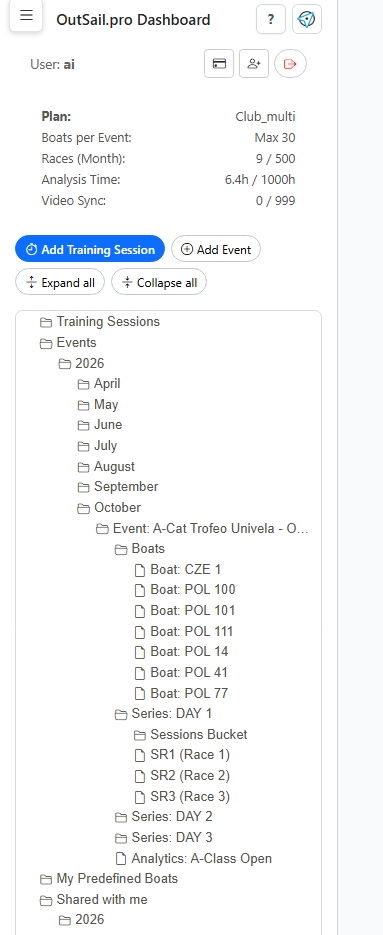
    A top-level entity used to logically organize sailing data. An event can represent a multi-day regatta or a training block.

  • Series
    A collection of races or training sessions that typically take place on the same day.

  • Boat
    A boat added to the system so its performance can be tracked and analyzed.

  • Race
    A single race added to the system for performance analysis. To analyze a race, you must define a course (set of marks) and the sequence in which those marks are passed.

  • Session
    Continuous telemetry data captured during sailing. For example, if you start recording data on a device such as Vakaros at the beginning of sailing and stop when you finish, that recording is one session.

  • Session Bucket
    A container for sessions. It groups sessions from one or more boats so they can be analyzed together.


Common Workflow

  1. Collect session data
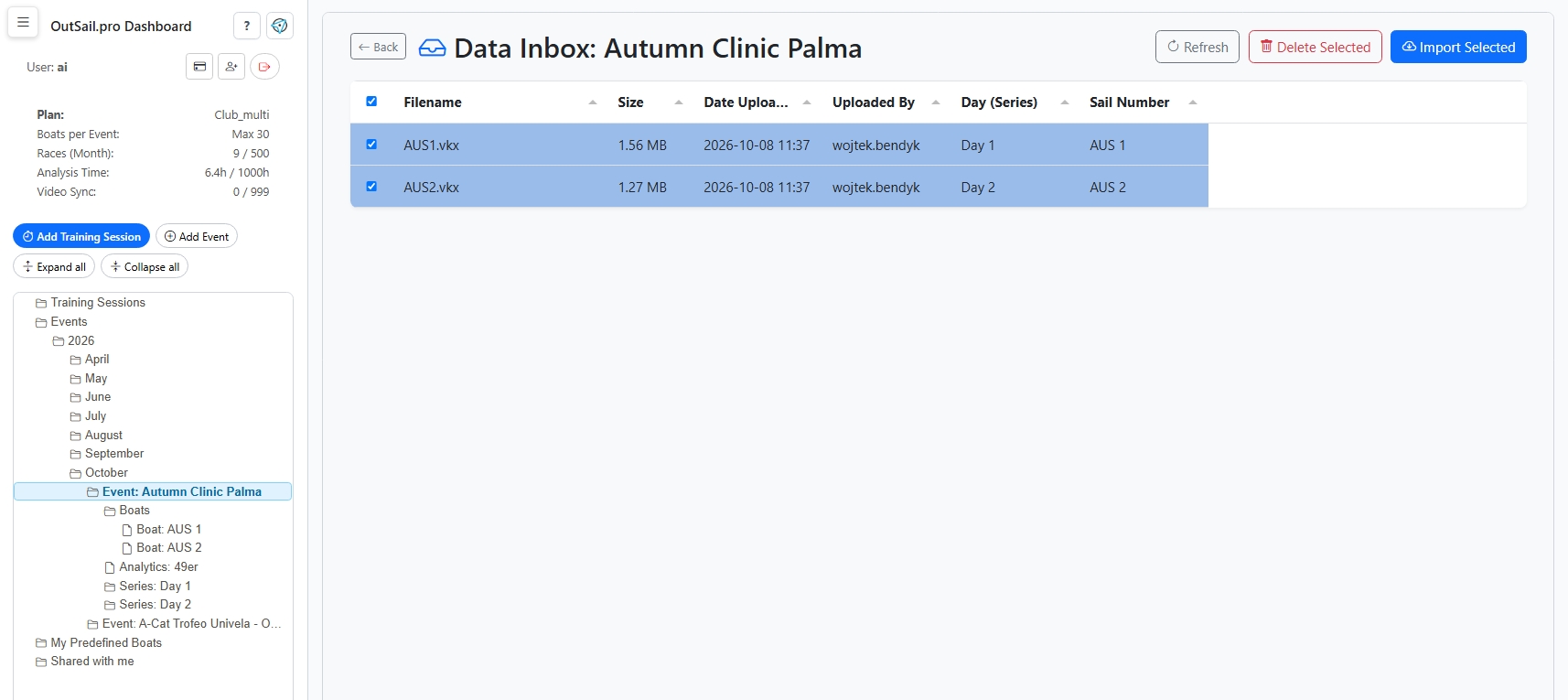
    Store session files from all event participants locally. At the moment, we support Vakaros, Sailmon, GPX, and Explorer file formats.

  2. Create an Event
    Give the event a clear name and date, for example: “A-Class World Championship 2025”.

  3. Add boats to the Event
    Add all boats that participated and for which session data is available. Use unique and descriptive boat names to make later analysis easier.

  4. Create a Series
    A Series groups races that typically occurred on the same day. Use recognizable names such as “Day 1” or “Day 2 – Afternoon”.

  5. Add sessions to the Session Bucket
    When a Series is created, a Session Bucket is created automatically. Add the relevant sessions (recorded data) from one or more boats.

  6. Review and trim sessions
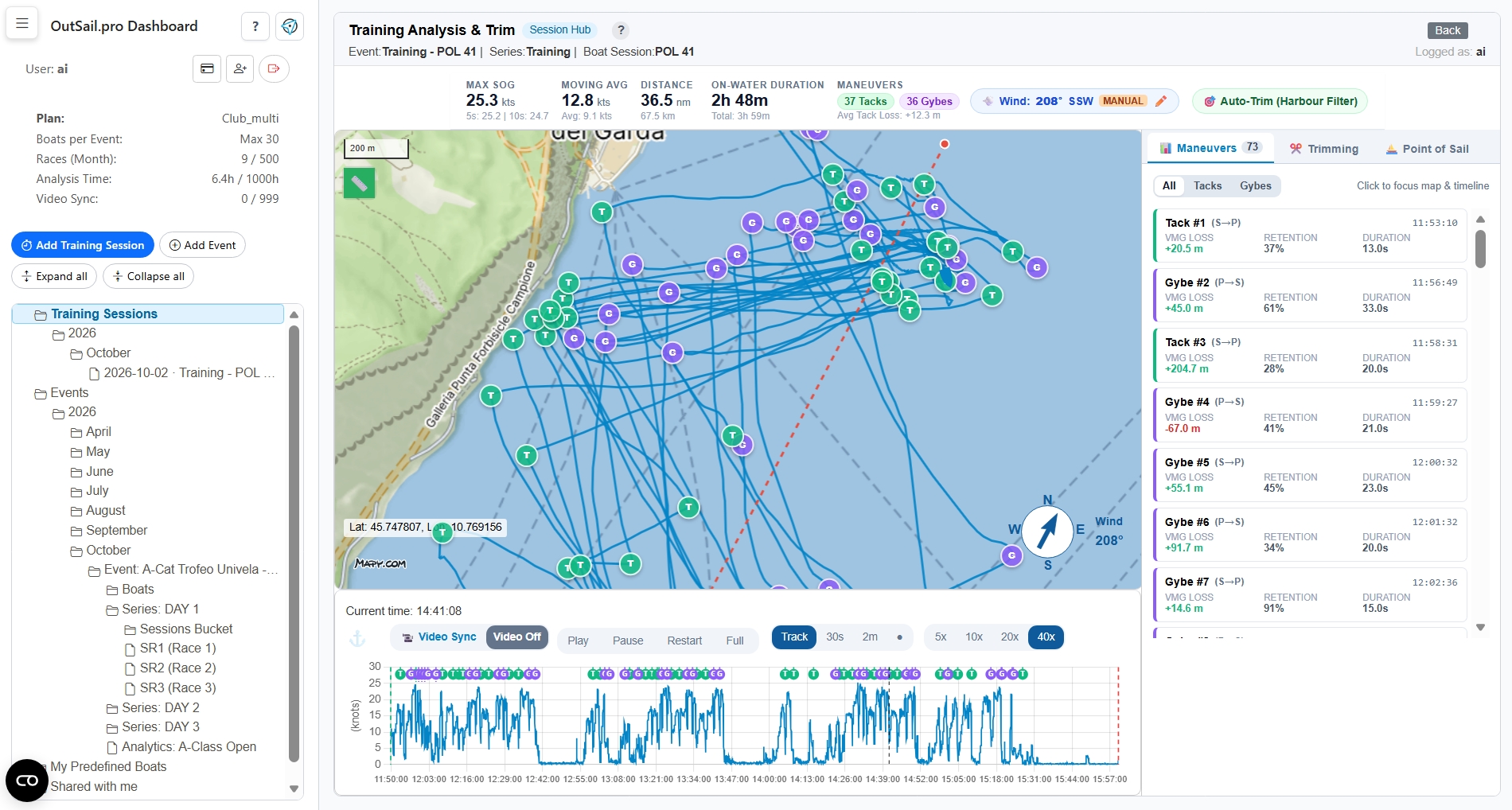
    Inspect individual sessions to ensure they are correct and cover the relevant time span. Trim away data that is not relevant for race or training analysis.

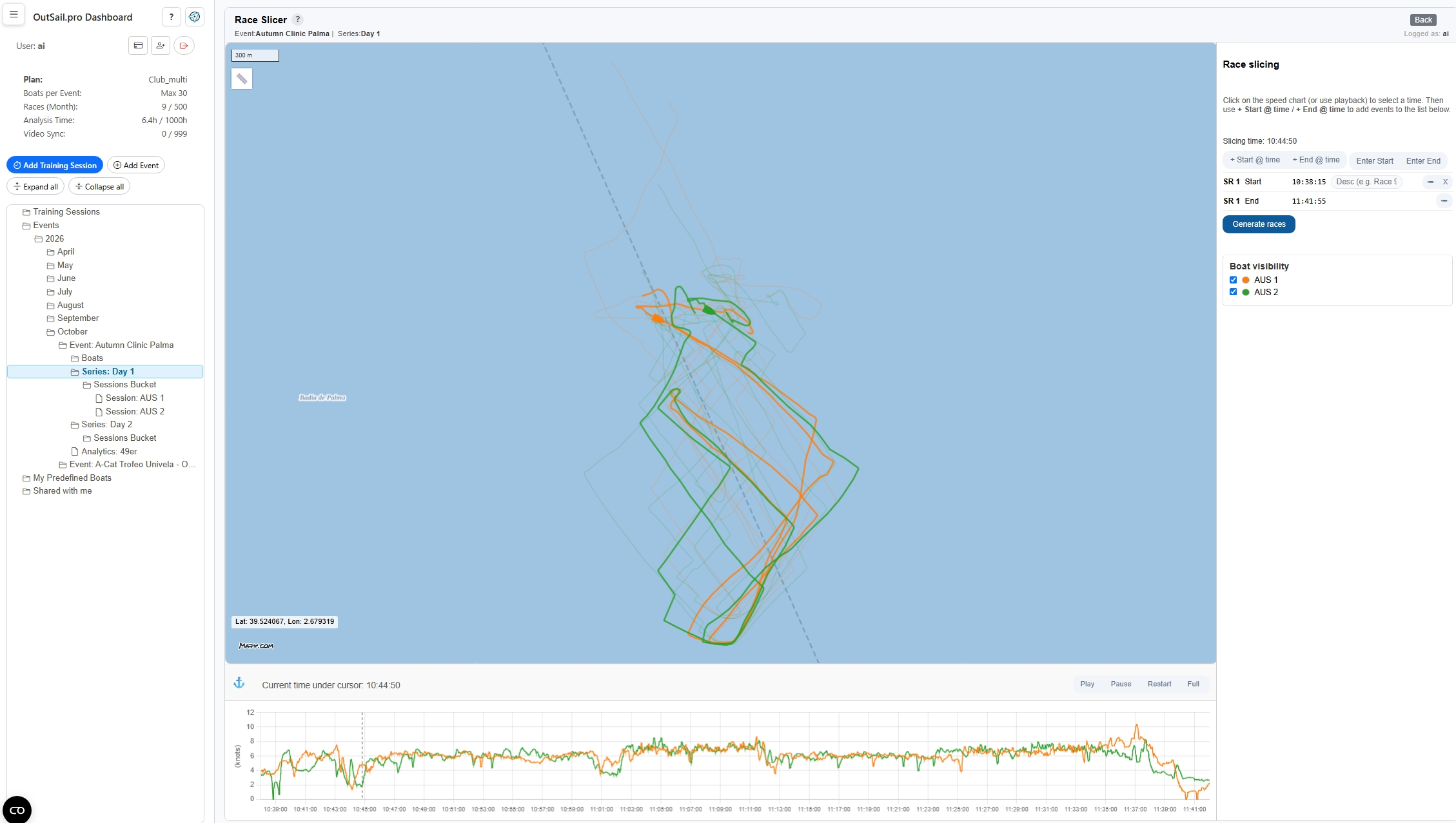
  7. Slice the Series into Races
    Use Action → Slice Series into Races on the selected Series in the tree menu.

  8. If start and finish times are known, enter them directly.
  9. If not, you can accurately determine race boundaries by examining boat tracks on the chart.
  10. Use mouse zoom to adjust the time scale.
  11. Press F to lock the vertical time indicator, then click + Start @ time or + End @ time to define race boundaries. Press F again to unlock the indicator.
    After defining all starts and finishes, click Generate Races. The races will appear automatically in the tree menu.

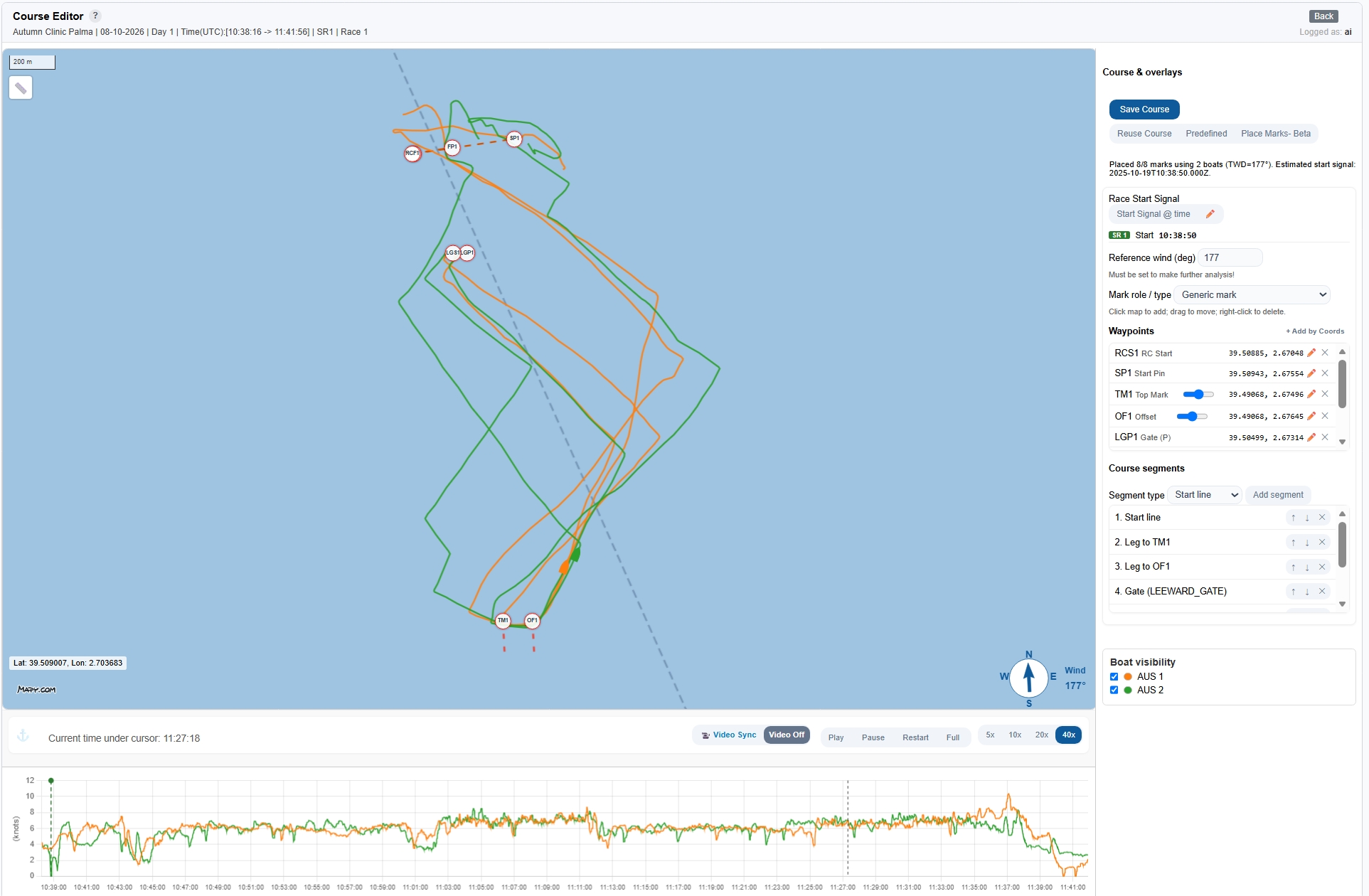
  12. Create the race course
    Select a race and choose Action → Create Course.

  13. First, define the wind direction.
  14. Then define all race marks. If coordinates are not available, place them manually on the map.
  15. For a typical Olympic course, define:
    Race Committee Start, Start Pin, Race Committee Finish, Finish Pin, Windward Mark, Offset Mark, Leeward Gate.
  16. Finally, define the sequence in which the marks are passed.

Creating accurate courses is one of the most important steps, as all subsequent analysis depends on this data. When finished, click Generate Course.

  1. Analyze the race
    Select a race and click Analysis in the tree menu.
  2. If the analysis has not been generated yet, it will be created now (this may take a few seconds for large datasets).
  3. If it already exists, the system will reuse the existing analysis.

If you are new to the system, we strongly recommend starting with the Interpreting Analysis guide. It explains the visual language of the application and helps you quickly identify opportunities for improvement.


Interpreting Analysis Screens

The OutSail.pro system provides several powerful tools for dissecting race performance. This section explains how to interpret the key analysis screens.

1. Extended Leg Analysis (Boxplots)

Overview

The Extended Leg Analysis feature provides detailed statistical insights into boat performance for each leg of a race. It visualizes the distribution of key performance metrics (SOG, VMG, True Wind Angle, and Heel) using boxplots, allowing for easy comparison between boats and identification of performance trends.


How to Interpret the Boxplots

Rather than just displaying a single "average speed" number, a boxplot shows you the entire distribution of a boat's performance. It tells you what speeds your boat hit most often, how consistent it was, and what its realistic peak performance was.

To give you the most accurate picture of your sailing performance, we intentionally filter out extreme, one-off spikes (such as a 1-second GPS glitch saying the boat traveled at 100 knots).

Here is exactly what every part of the chart represents:

The Box (The "Core 50%")

The colored rectangular box in the middle of the chart represents the core 50% of your performance. Your boat spent exactly half of the leg performing within this range.

  • Top Edge of the Box (75th Percentile / P75):
  • This is your "upper-tier" consistent performance.
  • Meaning: You were performing worse than this value 75% of the time, and performing better than this value only 25% of the time.
  • Thick Center Line (Median / 50th Percentile):
  • This is the exact middle point of your performance.
  • Meaning: Half of the time your boat was above this line, and half the time it was below.
  • Bottom Edge of the Box (25th Percentile / P25):
  • This is your "lower-tier" consistent performance.
  • Meaning: You were performing worse than this value only 25% of the time.

The Whiskers (The "Realistic Extremes")

The horizontal lines extending out from the top and bottom of the box are called whiskers. They show your typical peak highs and absolute lows, ignoring sudden glitches.

  • Top Whisker (90th Percentile / P90):
  • This represents your realistic maximum performance.
  • Meaning: Only 10% of your data points were higher than this line. It strips away isolated 1-second GPS spikes to show the true upper limit you achieved and held on a leg.
  • Bottom Whisker (10th Percentile / P10):
  • This represents your realistic minimum performance.
  • Meaning: Only 10% of your data points were lower than this line.

The Dot (The Robust Average)

  • The Dot inside the Box: represents the Robust Average (or Trimmed Mean) of your leg.
  • Instead of mathematically averaging every single raw data point (which could be severely skewed by a single bad GPS reading), we calculate the average based exclusively on the core percentiles (P10, P25, Median, P75, P90). This gives you a highly accurate, resilient representation of the boat's "true" average capability on that leg.

Technical Details & Architecture

Data Filtering

  • Maneuvers: Data during tacks and jibes (±20s buffer) is excluded to focus on steady-state leg performance.
  • Mark Roundings: Data within 100m of marks is excluded to remove rounding bias.
  • Short Legs: Legs shorter than 200m are skipped entirely.

2. Maneuver Shape Analysis

This screen helps you compare the efficiency and geometry of maneuvers such as tacks and jibes.

  • What it shows
    Each maneuver is isolated and overlaid on a common chart, allowing you to compare boat tracks through the turn.

  • Key metrics

  • Distance Lost: The extra distance sailed compared to a straight line (lower is better).
  • Time to Recover: The time required to return to full speed after the maneuver.

  • How to use it
    The overlays reveal whether you are turning too wide (losing distance) or too tight (losing speed).

3. Radial Analysis (Polar Charts)

Radial Analysis visualizes performance relative to wind direction.

  • What it shows
    A polar chart where the angle represents True Wind Angle (TWA) and the radius represents Speed (SOG or VMG).

  • How to interpret it

  • SOG chart: Displays raw speed at different angles, often forming a “butterfly” or “heart” shape with peak speeds on reaches.
  • VMG chart: Highlights upwind and downwind efficiency, with lobes pointing toward 0° (upwind) and 180° (downwind). Larger lobes indicate better VMG.

  • Typical use case
    Identify optimal sailing angles. For example, if your downwind VMG drops sharply at lower angles, the chart may reveal that you are sailing too deep.